My Mac had been throwing storage warnings for weeks. I'd deleted apps, emptied the trash, moved files to an external drive. Nothing worked. The number barely moved. Then I found a single hidden folder inside Apple Mail that had quietly eaten 65GB of my hard drive. Here's exactly what it was, how I deleted it, and the one setting that makes sure it never happens again.
You don't need CleanMyMac. You don't need more iCloud storage. You need about 15 minutes and a willingness to open Terminal once.
The assumption that costs you
#Gmail is cloud-based, so it feels like Apple Mail is just a window into emails that live somewhere on Google's servers. Nothing is actually stored on your machine. That's the assumption most people make, and it's wrong.
Apple Mail is designed to download a local copy of your attachments and cache them on your hard drive. The idea is offline access so you can open emails and read attachments without an internet connection. For a Gmail account with years of emails, that cache grows continuously in the background. No warnings. No size limit. No automatic cleanup. And Apple never mentions this when you set up your account. It's a default you never chose.
By the time most people notice, it's already massive.
What you need before starting
#Just three things: a Mac with Apple Mail connected to Gmail, Terminal (already installed on every Mac, no downloads required), and about 15 minutes. No budget, no third-party apps, no subscriptions.
Note: You do not need CleanMyMac, MacKeeper, or any paid cleaner for this. Everything here is free and built into your Mac.
Step 1: Stop the problem before you clean it up
#Before touching anything else, change one setting. Open Mail and navigate here:
Mail → Settings → Accounts → [Your Gmail account] → Account Information
Find the "Download Attachments" dropdown and set it to None.
This matters because there's no point clearing out the cache if Mail immediately starts rebuilding it the moment you reopen it. None means attachments are never auto-downloaded to your Mac again. When you click an attachment in an email, it downloads temporarily so you can view it and that's it. Everything still lives on Gmail's servers. Nothing is lost.
Step 2: Find the culprit
#Quit Mail completely with Cmd + Q (not just closing the window). Mail locks certain files while it's running and we need those files accessible.
Open Terminal. If you've never used it before, don't worry. You're not going to break anything. Every command here either reads information or deletes one specific folder. Nothing else.
Paste this command and hit Enter:
du -sh ~/Library/Mail/V10/*/
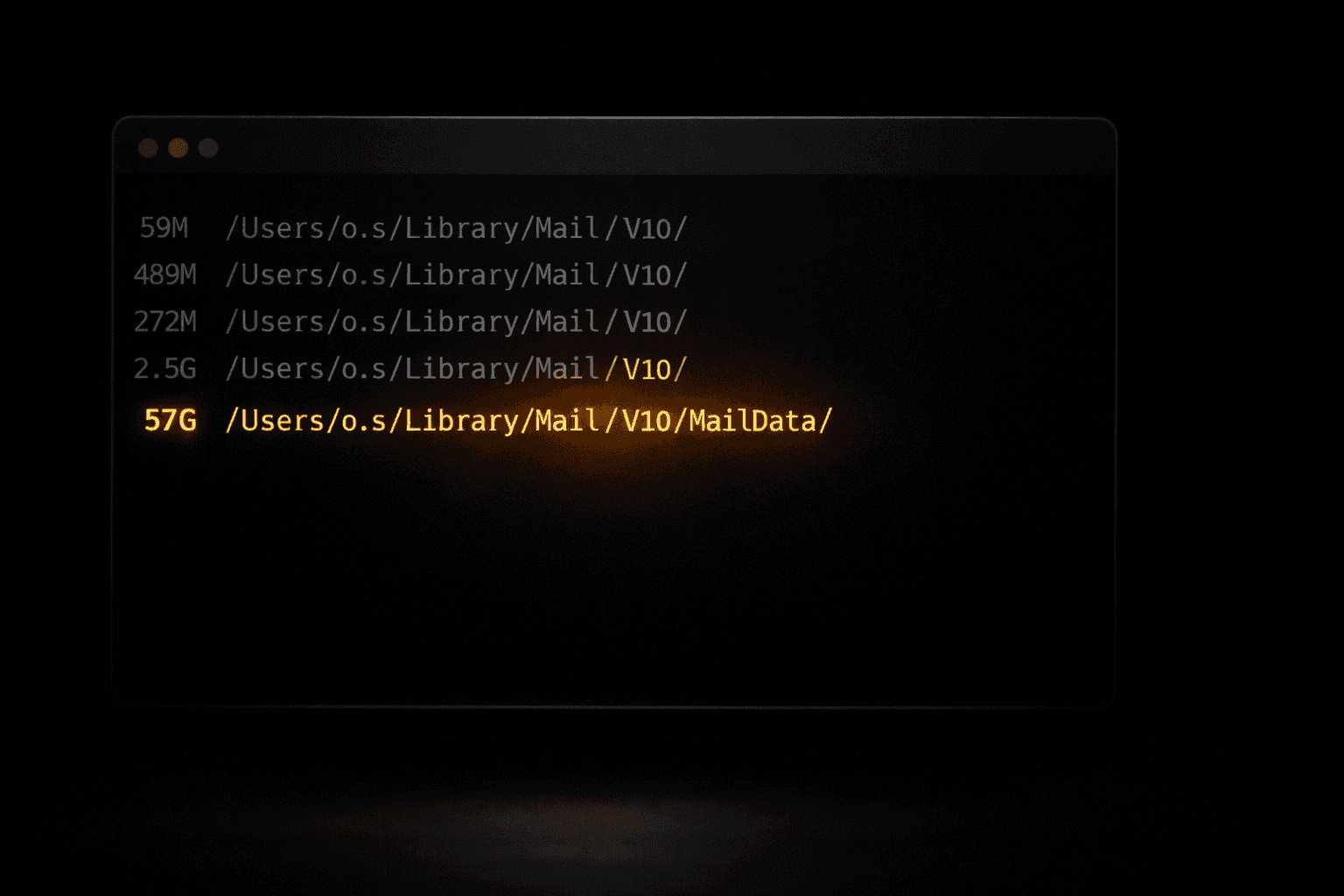
You'll see a list of folders with their sizes. Most will be small, a few hundred megabytes at most. One will be dramatically larger than the others. In my case:
59M    /Users/o.s/Library/Mail/V10/21A3DDF0.../
489M   /Users/o.s/Library/Mail/V10/21DC134A.../
2.5G   /Users/o.s/Library/Mail/V10/7B9FE3A9.../
57G    /Users/o.s/Library/Mail/V10/MailData/
57GB sitting inside a folder called MailData. That's the one.
Step 3: Drill deeper
#Run this second command to see what's inside MailData:
du -sh ~/Library/Mail/V10/MailData/*/
What came back in my case:
150M   .../MailData/BiomeStream/
56G    .../MailData/MFArchiveFileWrapper/
0B     .../MailData/Protected Index Journals/
96M    .../MailData/RemoteContentURLCache/
56GB inside a single folder called MFArchiveFileWrapper. That's Apple Mail's attachment cache: every attachment from every email it has ever downloaded, sitting on your hard drive doing nothing.
Step 4: Delete the cache
#This next step involves a delete command in Terminal. Before you run it, here's exactly what it does and doesn't do.
rm -rf permanently deletes a folder and everything inside it. In this case, what you're deleting is a locally cached copy of attachments that still exist in full on Gmail's servers. Your emails are untouched. Your attachments are untouched. If you open an email tomorrow and click an attachment, it downloads fresh from Gmail. The only thing being removed is the hoarded local copy that's been sitting on your Mac taking up space.
When Mail reopens, it will create a new empty MFArchiveFileWrapper folder automatically. That's expected behaviour.
Run these three commands one at a time:
osascript -e 'quit app "Mail"'
rm -rf ~/Library/Mail/V10/MailData/MFArchiveFileWrapper
open -a Mail
The result
#Check your storage at Apple menu → System Settings → General → Storage.
Mine went from 65GB down to 5.31GB. Fifteen minutes, three commands, zero dollars.
Keeping it this way
#Two things to remember going forward. First, Download Attachments stays on None. That setting is now your permanent protection. Second, if Mail ever starts growing again, you know exactly where to look. Open Terminal, run the du -sh commands, check MFArchiveFileWrapper. If it's grown, delete it again. The whole process takes under five minutes once you've done it once.
What Apple should have told you
#This is not an obscure bug or an edge case. It happens to anyone with a large Gmail inbox and Apple Mail's default settings, which is a lot of people. The reason most of them end up paying for storage upgrades or cleaner apps is simply that nobody told them where to look.
Now you know. And you didn't spend a cent.